Restoring Files From Your Google Drive Backup to a New Computer
Also applies to your current computer if the hard drive was wiped/replaced.
1. Open Google Drive on the new computer
2. Locate the backup on the left side of the screen (under Computers) > right-click on the computer back up name, and rename to "OLD Computer" for easy identification
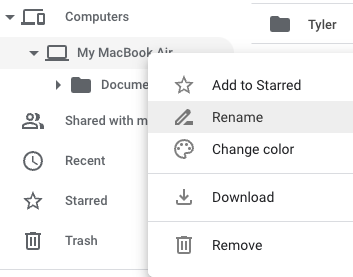
 Before
After
Before
After
3. Click on your newly renamed OLD Computer
4. Please download each individual folder within your "Old Computer" back up (Desktop, Documents, etc) > Click on the 3 dots next to the folder you want to download > select Download from the menu that appears
Please note: If your Desktop and/or Documents folders contain a large amount of data, we recommend downloading the contents in smaller batches. Downloading an entire folder at once (for example, your full Desktop) may cause Google Drive to split the files into multiple folders during download, and the contents may not remain in their original order.

5. Google Drive will create a ZIP file of the selected folder and download it to your Downloads folder
6. Click the Arrow or File icon next to the ZIP file name and select Show in Finder

7. Drag the ZIP file to the desired location on your hard drive, then double-click it to unzip the contents. Move the files to the appropriate folder (for example, Desktop files back to your Desktop, Documents files back to your Documents folder)
8. Set up Google Drive for desktop on your new computer